
If you’ve ever fumbled through iRacing’s black box mid-race trying to change tires or fuel strategy—you already know how frustrating it can be.
When you’re pushing laps and fighting for position, the last thing you want is to miss a pit call because you’re clicking through menus.
That’s where the Stream Deck + iRaceIT plugin combo becomes a game changer.
In this guide, I’ll walk you through:
- How to install and set up your Stream Deck for iRacing
- How to configure the iRaceIT plugin for pit stops
- The one critical fix if it’s not working
- How to actually use it in-race to simplify everything
🎮 Why Use a Stream Deck for iRacing?
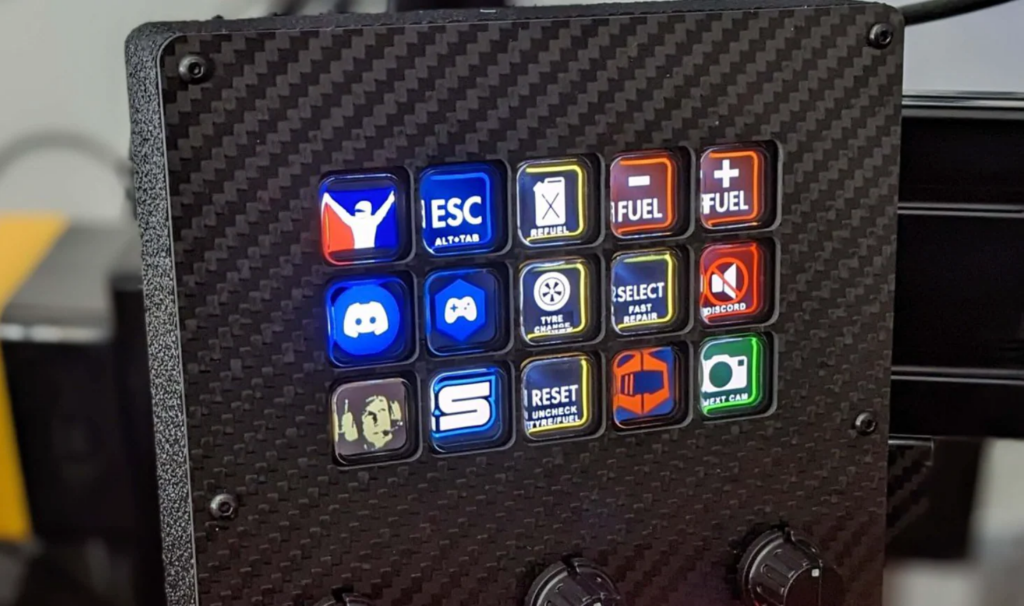
If your wheel doesn’t have enough buttons—or you’re dealing with unreliable inputs—this solves it instantly.
With a Stream Deck, you can:
- Change tires with one click
- Toggle refueling instantly
- Adjust fuel levels in real time
- Switch between wet and dry tires
- Stay focused on racing instead of menus
👉 Recommended hardware:
Elgato Stream Deck MK.2: https://amzn.to/4rh8Bhm
(#commissionsearned)
⚙️ Step 1: Install Stream Deck Software + iRaceIT Plugin
Getting started is simple:
1. Install Stream Deck Software
- Download from Elgato’s official site
- Plug in your Stream Deck
- Launch the software
2. Install the iRaceIT Plugin
- Open Settings → Plugins
- Click the “+” button
- Search for “iRacing”
- Install iRaceIT
This plugin is what enables all pit stop controls directly from your Stream Deck.
🧩 Step 2: Configure Your Pit Stop Buttons
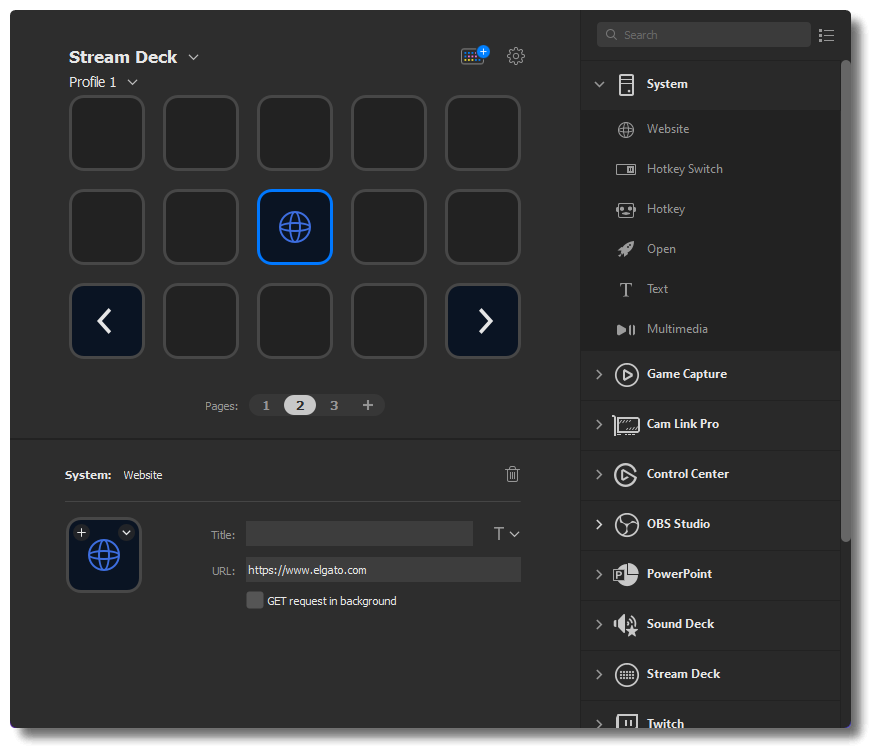
Once installed:
- Go to the plugin panel (right side)
- Drag actions onto your Stream Deck layout
- Customize each button
Key Actions You Should Add:
- Change All Tires
- Left/Right Tire Selection
- Refuel Toggle
- Fuel Increase / Decrease
- Wet ↔ Dry Tire Switch
- Clear Tire Changes
💡 Many buttons are toggle-based:
- Press once → enable
- Press again → disable
This gives you full control without needing multiple buttons.
🚨 Step 3: FIX — Stream Deck Not Working with iRacing
This is the one that gets everyone (including me).
If your Stream Deck isn’t communicating with iRacing, the fix is:
👉 Run both programs as Administrator
How to fix it:
- Right-click Stream Deck → Properties
- Go to Compatibility
- Enable: Run this program as administrator
- Do the same for iRacing (if applicable)
💥 That’s it.
This single setting can save you hours of frustration.
🏁 Step 4: How It Works In-Race
Once everything is set up, this is where it shines.
Instead of:
- Opening the black box
- Navigating menus
- Clicking through options
You just:
- Tap “All Tires” → Done
- Tap “Refuel” → Done
- Tap “+ Fuel” → Adjust instantly
- Tap “Wet Tires” → Immediate switch
No distraction. No mistakes.
💡 Pro Tips for Better Racing
- Group buttons by function (fuel, tires, strategy)
- Use icons for quick recognition mid-race
- Add a second page for tools like:
- Trading Paints
- Overlays
- Keep your most-used actions on the main screen
🧠 Why This Actually Improves Performance
This isn’t just convenience—it’s performance.
By removing menu navigation:
- You stay focused on racing lines
- You react faster to strategy changes
- You reduce pit stop errors
- You can execute undercuts more effectively
🎬 Final Thoughts
If you’re getting into races that require pit strategy, this setup is one of the highest ROI upgrades you can make—especially compared to expensive hardware.
Between the Stream Deck and iRaceIT plugin:
- Setup is simple
- Control is instant
- Racing becomes cleaner and more competitive
📺 Watch the Full Tutorial